Inside Password Vaults: How Modern Password Managers Actually Work
Most of us have been there — staring at a login screen, trying to remember whether we used our cat's name, our childhood street, or that one "secure" password we swore we'd never forget. Password fatigue is real, and it's one of the most quietly dangerous problems in digital security today. Password managers were built to solve exactly this. But how do they actually work? How can a piece of software remember all your secrets — and keep them safe from everyone, including itself?
Let's take a walk through the machinery behind modern password managers, from the moment you type your master password to the moment your credentials are safely unlocked on your screen.
The Problem They're Solving
Before diving into how password managers work, it helps to understand why they exist in the first place. The average person manages dozens — sometimes hundreds — of online accounts. Remembering a unique, strong password for each of them is practically impossible, so most people fall back on a handful of bad habits: reusing the same password across sites, choosing easy-to-guess ones like "password123", or writing them down in a notes app or sticky note.
Each of these habits introduces real risk. When one service gets breached and passwords are leaked, attackers try those same credentials on every other platform — a technique called credential stuffing. A password manager breaks this cycle entirely. It generates strong, unique passwords for every account, remembers them all, and fills them in automatically, so you never have to think about it again.
It All Starts With a Master Password
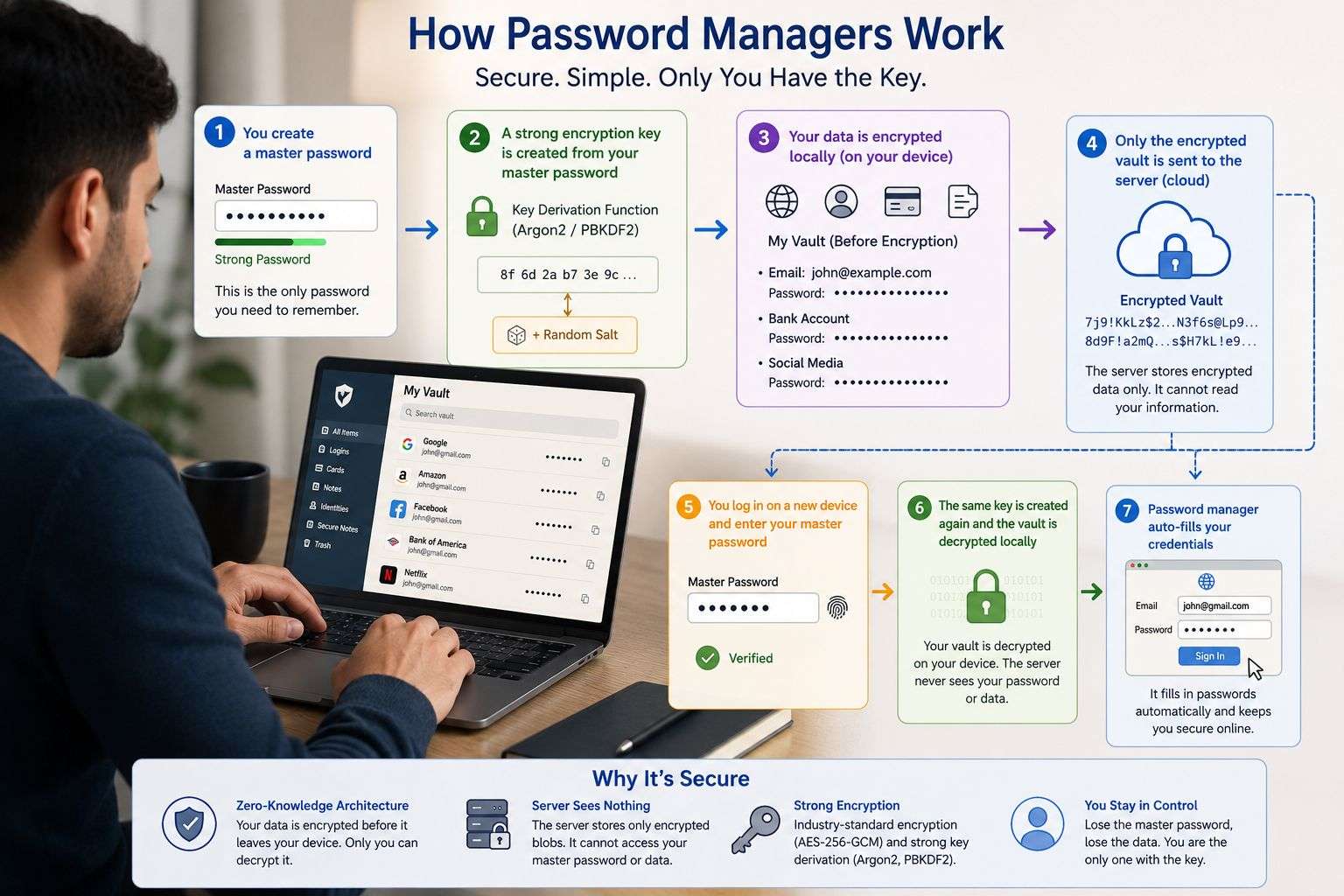
At the heart of every password manager is a single, critically important concept: the master password. This is the one password you actually need to remember. Everything else — your banking credentials, your email login, your social media accounts — lives behind this one key.
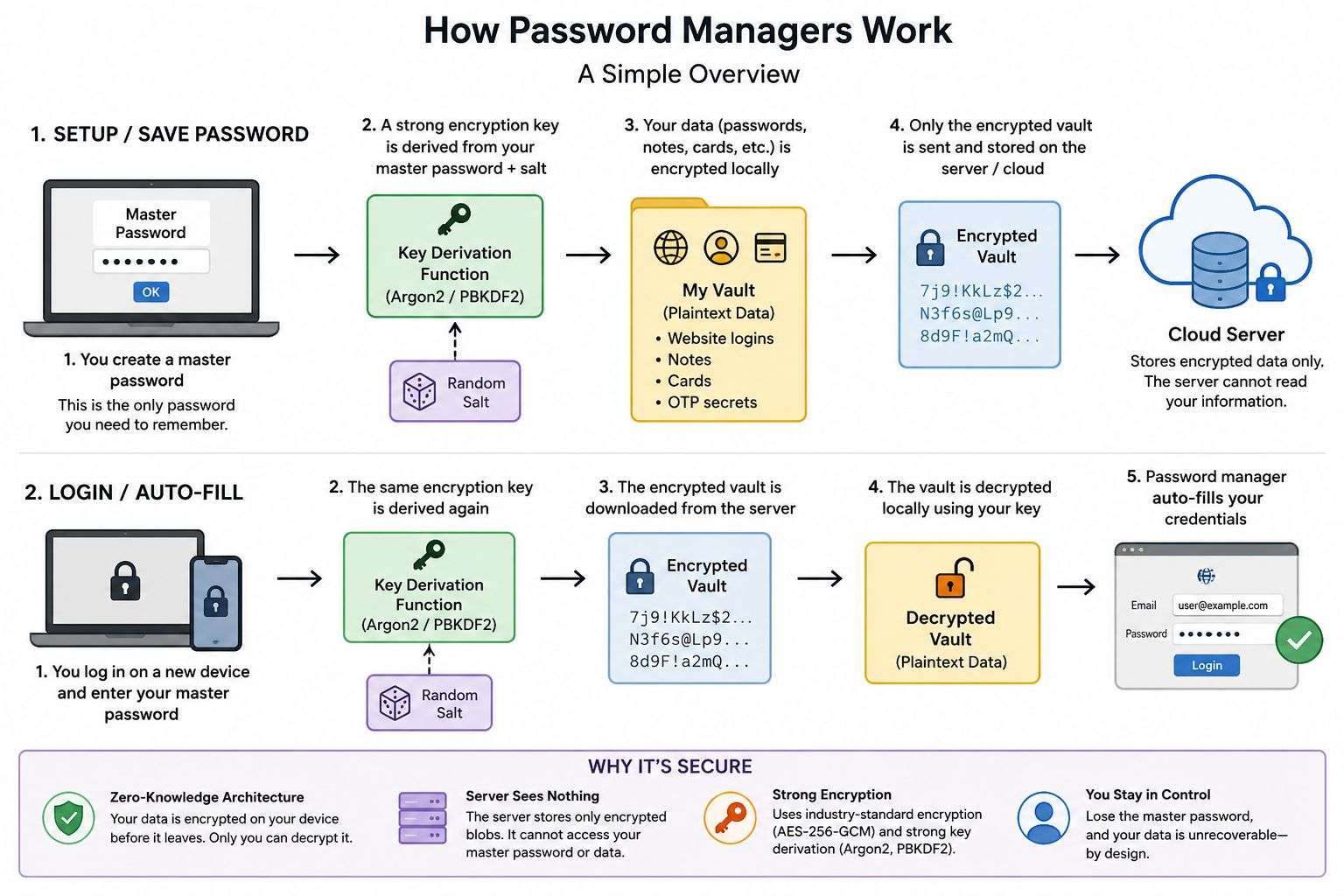
But here's the important part: the master password is never stored anywhere. Not on your device, not on the password manager's servers, nowhere. Instead, it's immediately transformed into something else entirely — a cryptographic key — and that transformation is one-way. This means that even if someone broke into the password manager company's servers and stole everything, they'd have no way to reverse-engineer anyone's master password from what they found.
Turning a Password Into a Key: Key Derivation
So how exactly does a password get turned into an encryption key? This is where a family of algorithms called Key Derivation Functions (KDFs) come in.
You might wonder — why not just use the master password directly as the encryption key? The answer is that passwords chosen by humans are predictable. They're short, they often follow patterns, and they're vulnerable to brute-force attacks where an attacker simply tries millions of password guesses per second.
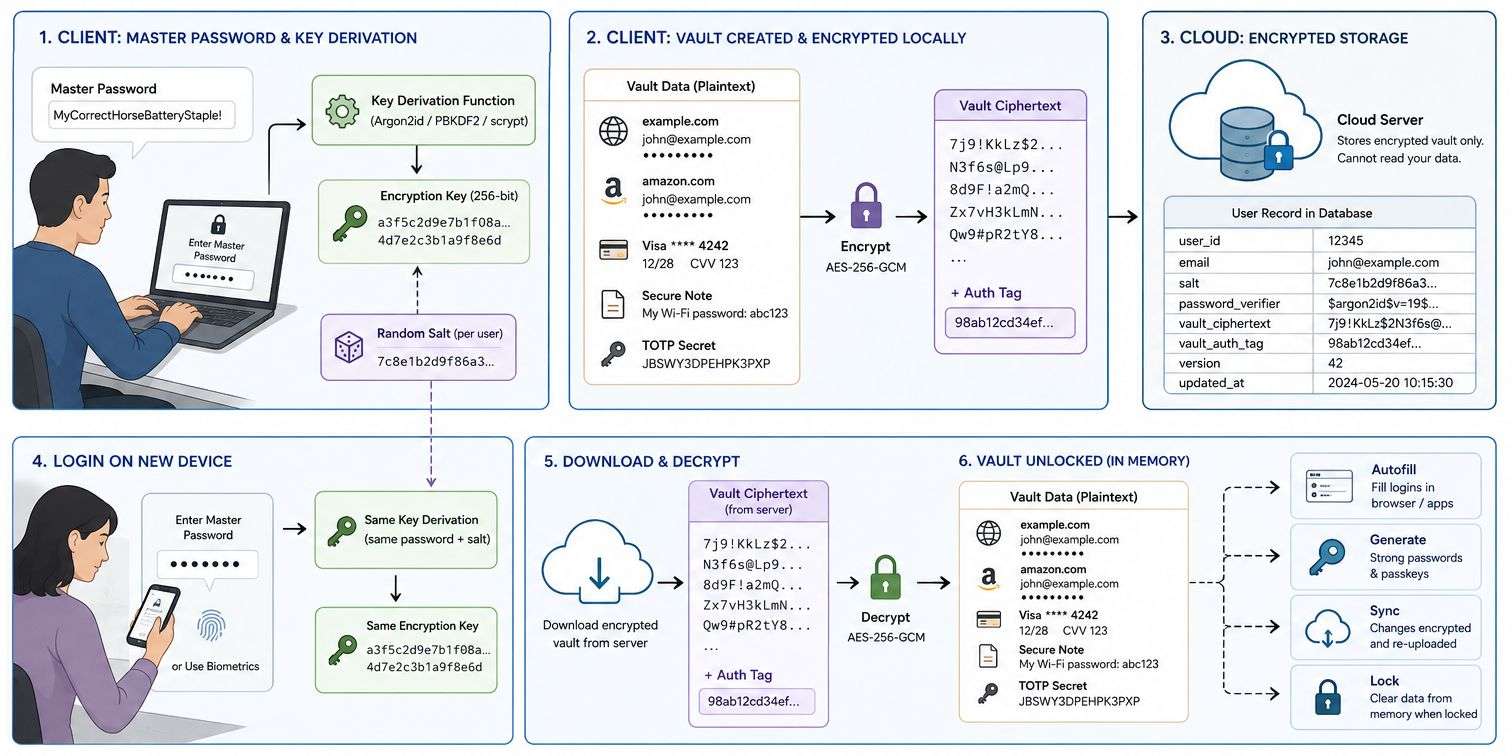
Key Derivation Functions like Argon2id, PBKDF2, and scrypt are designed to be intentionally slow and memory-intensive. Running one takes a meaningful amount of computation — maybe a fraction of a second on a modern computer. That might not sound like much, but it means an attacker trying to guess your master password can only test a few hundred or thousand guesses per second, rather than millions. It makes brute-force attacks economically impractical.
There's also another trick involved: a random value called a salt is mixed into the key derivation process. This salt is unique to your account, and it means that even if two people choose the exact same master password, their derived keys will be completely different. This defeats a class of attacks called rainbow table attacks, where attackers pre-compute keys for common passwords ahead of time.
The output of this process is your encryption key — a long, seemingly random string of bits that will be used to lock and unlock your vault. This key exists only in your device's memory while you're logged in, and is discarded when you log out.
Locking the Vault: AES-256-GCM Encryption
With an encryption key in hand, the password manager can now encrypt your vault. The standard used by virtually every modern password manager is AES-256-GCM — Advanced Encryption Standard with a 256-bit key, operating in Galois/Counter Mode.
AES-256 is the same encryption standard used to protect classified government communications. It's effectively unbreakable by any known attack — brute-forcing a 256-bit key would take longer than the age of the universe, even with all the computers on Earth working together. The GCM part adds authenticated encryption, meaning any attempt to tamper with the encrypted data will be detected.
When you add a new password to your vault, it gets encrypted locally on your device before anything else happens. The server never sees your plaintext data — only the encrypted ciphertext is ever transmitted or stored in the cloud. This is a fundamental design principle of modern password managers.
Zero-Knowledge Architecture: The Server Knows Nothing
This brings us to one of the most important concepts in password manager security: zero-knowledge architecture. The idea is elegant in its simplicity — the service provider is designed in such a way that they mathematically cannot read your vault data, even if they wanted to.
Because all encryption and decryption happens on your device, the server is just a dumb storage system for encrypted blobs of data. The company running the service has no key, no way to decrypt your vault, and no access to your passwords. This also means that if the company's servers are breached by hackers, the attackers get nothing useful — just encrypted data that's worthless without the key that only exists on your device.
This is a meaningful protection and a meaningful limitation. It means your data is safe from the company's employees, government subpoenas, server breaches, and insider threats. It also means that if you forget your master password, the company genuinely cannot help you recover it — there's no "forgot password" email they can send you, because they don't have access to your vault.
Syncing Across Devices: How It All Comes Together
One of the most useful things about modern password managers is that they work across all your devices. Add a password on your laptop, and it's available on your phone seconds later. Behind the scenes, this sync process is straightforward because of how the encryption works.
Your encrypted vault is stored in the cloud. When you log into a new device, you enter your master password, and the key derivation process runs again on that device — producing the same encryption key from the same master password (and the same salt, which is stored alongside your encrypted vault, since it doesn't need to be secret). That key is then used to decrypt the vault locally. The server never participates in the decryption — it just hands over the encrypted blob.
When you make changes, the vault is re-encrypted locally and the updated ciphertext is pushed back to the server. It's a clean, secure loop where plaintext data never leaves your device.
The Human Experience: Auto-Fill, Biometrics, and Phishing Protection
For most users, all of that cryptography is completely invisible. What they see is a browser extension that fills in their password automatically, or a mobile app that unlocks with a fingerprint. This is by design — security tools that are difficult to use don't get used.
Auto-fill is smarter than it looks. Password managers don't just look for a username and password field on a page — they also check that the page's domain matches the domain where the password was originally saved. This is a subtle but powerful protection against phishing attacks. If an attacker creates a fake version of your bank's login page at a similar-looking domain, your password manager simply won't offer to fill in your credentials there, because the domain doesn't match. Many users would fall for a convincing fake page; password managers won't.
Biometric unlock — using your fingerprint or face to open the vault on mobile — is a convenience feature, not a replacement for the master password. Under the hood, your encryption key is still derived from the master password; biometrics just protect a stored copy of that key in the device's secure hardware enclave. If the device is reset or the app is reinstalled, you'll need your master password again.
What Could Still Go Wrong
No security system is perfect, and it's worth being clear-eyed about the limitations of password managers. The most obvious risk is the master password itself. If you choose a weak master password, or if someone watches you type it, the entire vault is potentially compromised. The security model is only as strong as that one human-chosen secret.
Device malware is another risk. If a keylogger is installed on your computer and captures your master password as you type it, no amount of encryption on the vault can help — the attacker has the key. This is why keeping your devices updated and free of malware matters as much as using a password manager.
Phishing attacks targeting the password manager itself are also a real threat. Fake login pages designed to look like Bitwarden or 1Password can trick users into entering their master password, handing over their key to an attacker. Always access your password manager through official apps and verified browser extensions, not through links in emails.
Finally, in true zero-knowledge systems, losing your master password can mean permanently losing access to your vault. Most password managers offer recovery options like emergency access contacts or recovery codes, but these need to be set up in advance and stored securely somewhere outside your vault.
Best Practices Worth Following
Understanding how password managers work makes it much easier to use them well. A few habits make a significant difference.
Choose a strong master password — not a word or phrase you've used elsewhere, but something long and memorable. A string of four or five random words, a passphrase, or a deliberately misspelled sentence all work well. Enable multi-factor authentication on your password manager account so that even if your master password is compromised, an attacker still can't access your vault without your second factor. Set up your recovery options before you need them. And treat your master password like what it is: the single most important credential in your digital life.
A Few Popular Options
The password manager landscape has matured considerably. Bitwarden is a fully open-source option that has been independently audited, and its code is publicly available for anyone to inspect. 1Password is widely used in professional settings and has a strong security track record. KeePass is a local-only option for users who don't want their vault in the cloud at all. Dashlane and Proton Pass round out the mainstream choices, with Proton Pass backed by the team behind the privacy-focused Proton Mail.
All of them share the same fundamental cryptographic architecture described above. The differences lie mostly in user experience, platform support, pricing, and additional features.
The Bottom Line
Password managers work by doing something humans are bad at — generating and remembering complex, unique secrets — and wrapping it in a layer of cryptography that means even the company providing the service can't see what you've stored. The master password never leaves your device in recognizable form; it becomes a key, that key encrypts everything, and only encrypted data ever touches the network.
For developers, this architecture is a fascinating intersection of applied cryptography, client-side security, and user experience design. For everyone else, what matters is simpler: a password manager is one of the highest-leverage security decisions you can make. One strong master password, and every other account in your life can have a unique, unguessable password without you ever having to think about it again.
References
- Bitwarden — Official Password Manager
- 1Password — Official Website
- KeePass — Open Source Password Manager
- OWASP — Password Storage Cheat Sheet
- MDN — Web Crypto API Documentation
- libsodium — Cryptography Library
- NIST Digital Identity Guidelines
- Cloudflare — What is Encryption?
- OWASP — Open Web Application Security Project
- Wikipedia — Password Manager Overview